IPTV player for LG TV
A LG TV can't open an M3U playlist or an Xtream Codes login by itself. Zapline is a player app for the TV that can — for playlists you already have. It ships with no channels, and it's on its way to the LG Content Store.
Step by step
- Install Zapline. Zapline runs on LG TVs from 2018 onwards (webOS 4.0 or newer). Once it's listed in the LG Content Store, press Home on the remote, open Apps, search for Zapline and install it.
- Pick how to add your playlist. The first screen offers four ways in: Use your phone, Log in with Xtream Codes, Add a playlist link for an M3U or M3U8 address, and Try the demo, which plays a few free test streams so you can look around first.
- Type it on your phone instead. Choose Use your phone and scan the code on the TV with your phone's camera, or open zapline.app/tv and enter the code shown. Type the server, username and password, or paste the M3U link, and the playlist appears on the TV. The details travel end-to-end encrypted and are deleted within ten minutes.
- Let it import. Zapline downloads the channels, movies and series once and keeps them on the TV, so later launches open in a second or two even with very large playlists. Pick the languages you watch and categories in other languages stay out of the way.
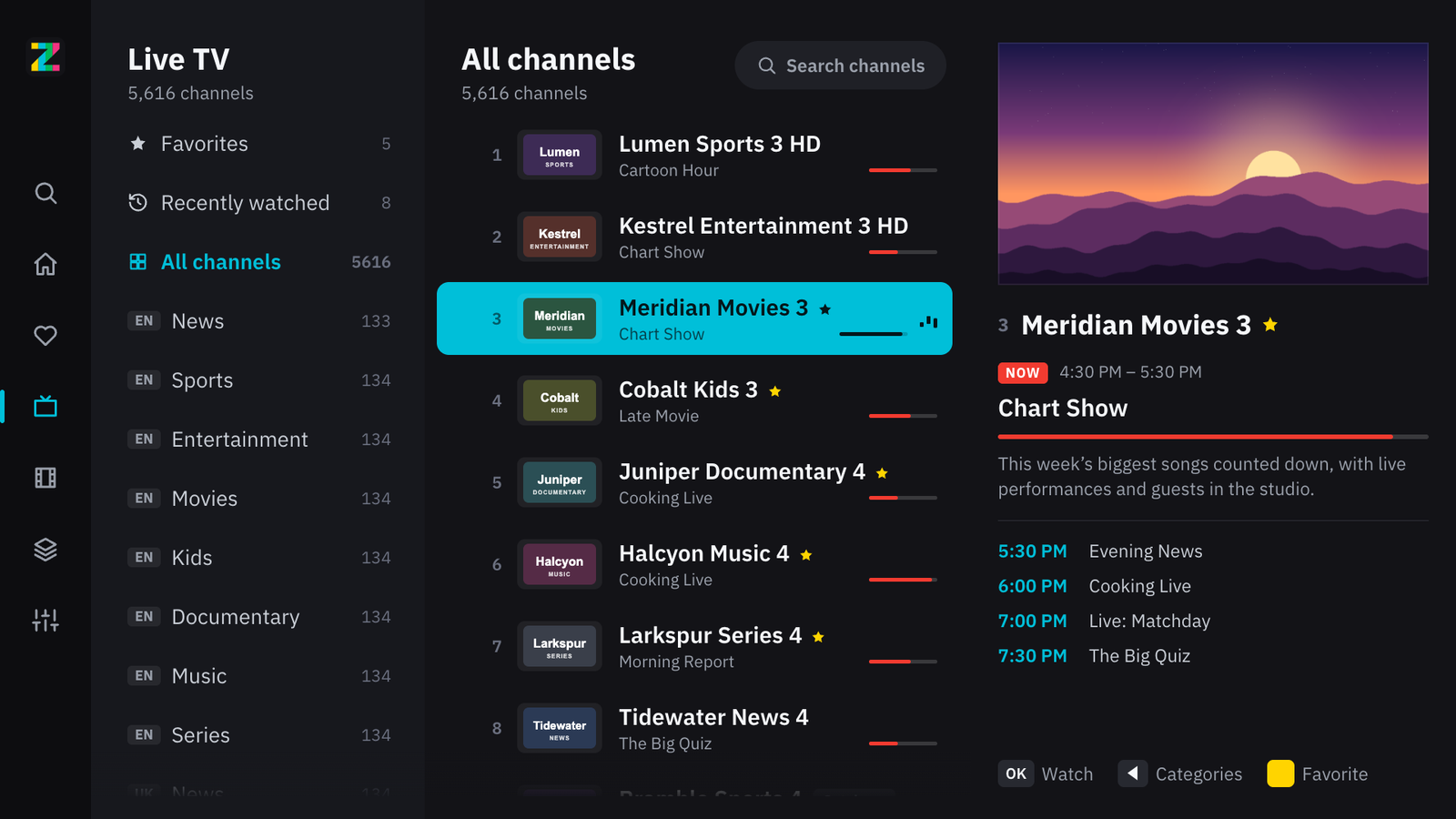
- Start watching. Open Live TV and rest on a channel: it plays in the preview window with the guide beside it. Press OK for full screen.
The remote, key by key
- Arrows and OK move around and open things. Left from the edge of a screen opens the menu.
- Back goes one step back; on the Home screen it returns to the TV's home screen.
- CH+ and CH−, or up and down in the player, change channel. Number keys jump to a channel number.
- Left and right skip back and forward in movies and episodes; hold them to go faster. Set the skip lengths in Settings › Playback.
- Play, Pause, Stop, Fast-forward and Rewind work in the player.
- Yellow adds or removes a favorite. No colour buttons on your remote? Use Add to favorites on a movie or series page, or Favorite in the player.
- The Magic Remote works as a pointer too: point at anything to focus it, press the wheel to open it, and scroll the wheel to move through lists.
What you get on the TV
- Live TV with a guide. Categories with language tags, a preview of the channel you rest on, on-now and up-next, and a channel banner in the player. Xtream logins bring their guide automatically; M3U playlists use the XMLTV address in the playlist header.
- Movies and series. Resume where you stopped or start from the beginning, choose subtitles before playback starts, and go straight on to the next episode. When your playlist has the same title in another language, the page offers it.
- Search everything — channels, movies and series — with results as you type.
- Favorites as tiles or a list, and recently watched channels on Home.
- Quiet updates. The playlist refreshes in the background every day, every three days or every week, or only when you ask.
- Adult categories stay hidden until you choose to show them, which needs a PIN.
If something doesn't work
- The playlist won't load. Check that the server address includes its port (
example.com:8080), that a link starts withhttp://orhttps://, and that the subscription hasn't expired or reached its device limit. - Channels stutter or won't start. For Xtream logins, open Settings › Playback › Live stream format and try MPEG-TS or HLS instead of Automatic.
- The guide is empty. It's nearly always mismatched channel IDs on the provider's side — see why your IPTV guide is empty.
- "No internet connection" appears. The TV lost its network. Zapline carries on by itself when the connection is back.
Zapline includes no channels and no content. It is a player for playlists you already have, the way a media player is for your own files. Your playlist and login stay on the TV, stored encrypted.